Warping happens when shrinking, cooling plastic pulls harder than the print is attached to the build plate. It most often appears as corners or long edges that curl upward after the first few layers.
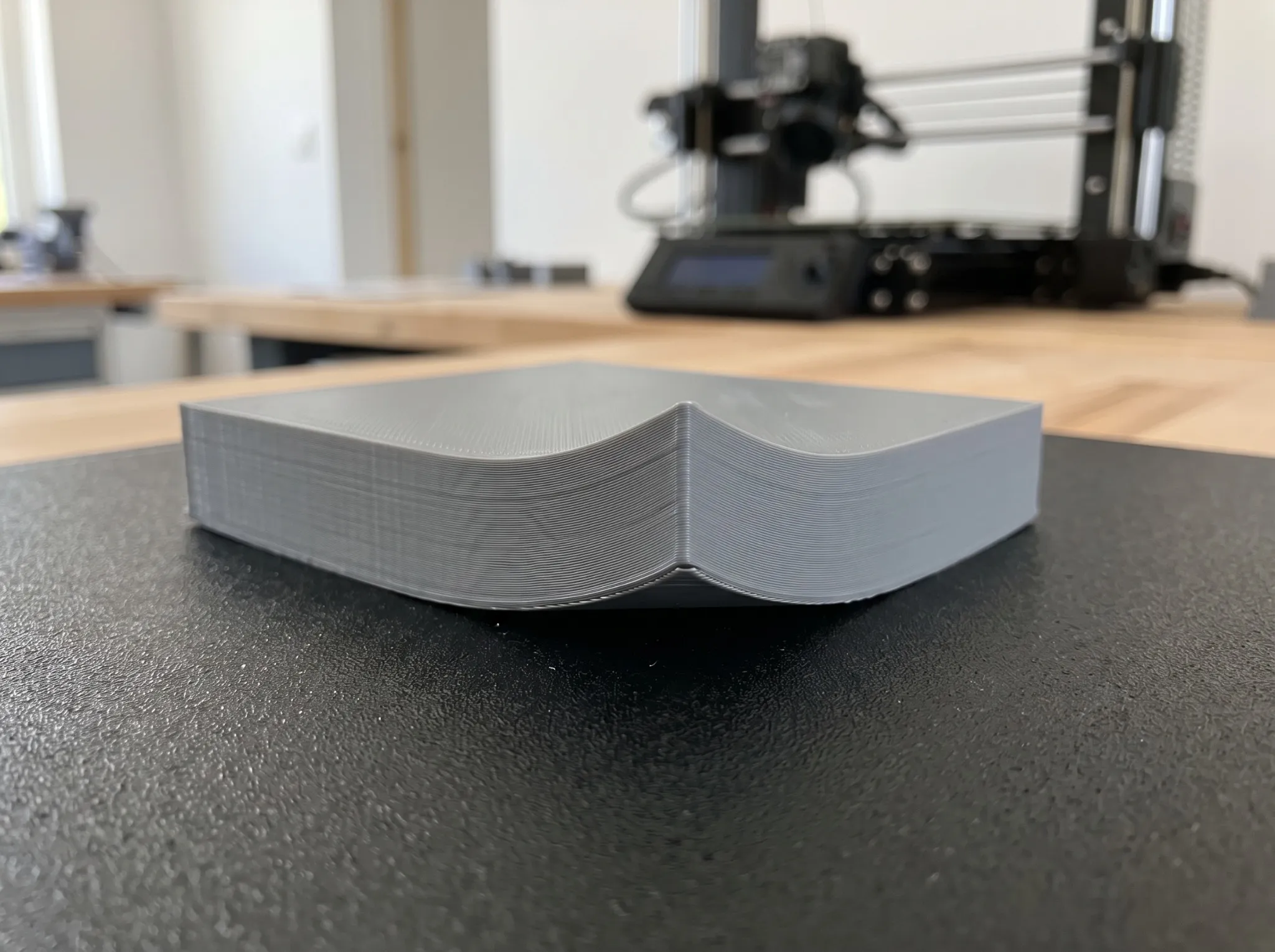
Quick diagnosis
| Symptom | Diagnose next |
|---|---|
| One or more corners progressively lift | Warping |
| The whole model slides without a curled base | Initial adhesion failure |
| A vertical crack forms higher in the model | Layer separation or thermal instability |
| Only one area of the plate fails | Contamination, plate seating, mesh, or flatness |
| The nozzle hits a lifted corner and the upper print shifts | Warping first, then a motion problem |
Do not treat every detached print as warping. The first layer can fail immediately because the nozzle is too high, the surface is contaminated, or extrusion is inconsistent.
Most common causes
- Oil or residue on the build surface.
- An uneven first layer or incorrect nozzle-to-bed distance.
- A nozzle or bed temperature that does not fit the material and surface.
- Cold air from a window, door, HVAC vent, or room temperature change.
- Cooling that is unsuitable for the material and geometry.
- A large footprint with sharp corners concentrating stress.
Fix 1: match the surface to the material
Check the printer and plate documentation before printing. Smooth PEI, textured powder coat, coated glass, and proprietary plates do not share one universal cleaning method or release behavior. PETG, for example, may bond too strongly to some smooth PEI surfaces unless the manufacturer specifies a release layer.
Verify
Confirm that the correct plate or build-surface profile is selected in both printer and slicer. A plate choice can affect probing offsets as well as temperature.
Fix 2: clean the build plate correctly
Let the plate cool. Remove it only if designed to be removable, then clean it with the approved product and method. Dry the top, edges, and underside completely, and avoid touching the print area when reinstalling it.
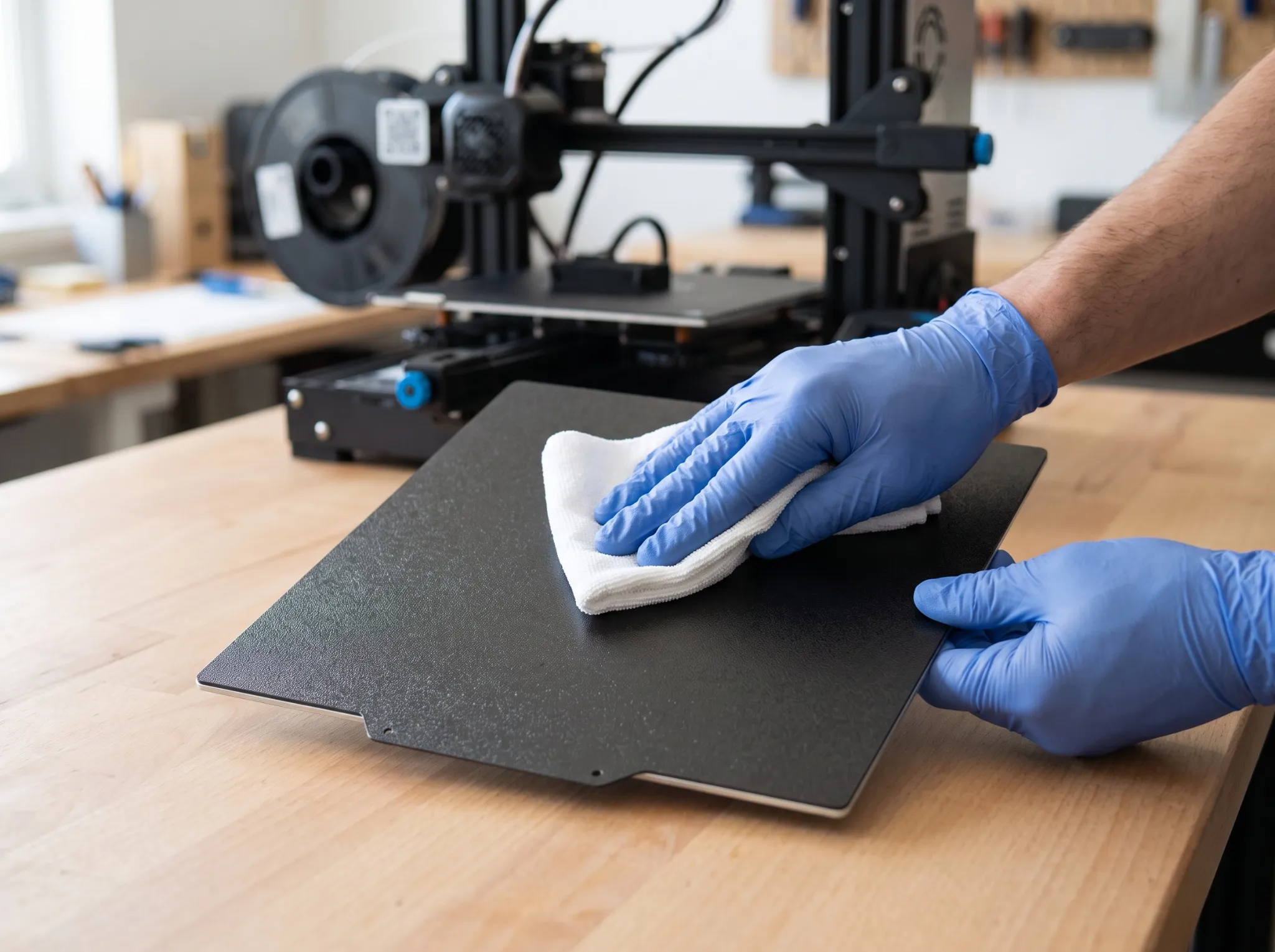
See the surface-by-surface instructions in How to Clean a 3D Printer Bed Safely.
Fix 3: read and calibrate the first layer
The first layer should form joined lines with consistent width across the print area.
- Possible excessive clearance: lines look round and remain separate; low flow can produce similar gaps.
- Likely correct: adjacent lines join with an even top and no exposed gaps.
- Possible insufficient clearance: ridges build between passes, flow may become restricted, or the nozzle scrapes. Excess flow can also raise ridges.
Run the printer’s documented first-layer or Z-offset calibration. Automatic probing measures the surface, but it does not guarantee that the selected offset produces the right squish for every plate and nozzle.
On Bambu Lab machines, begin with the plate, profile, and leveling checklist. Generic Z-offset adjustments apply only when the exact printer’s documentation supports them; do not paste another machine’s start G-code or offset.
Use a multi-zone single-layer pattern to check the center and edges. If only one zone is wrong, inspect plate seating, debris beneath the sheet, tramming, and the bed-mesh procedure rather than applying a global offset that harms the rest.
Fix 4: restore material temperatures
Use the exact filament or printer preset before improvising. Raising the bed temperature can help within a supported range, but excessive heat can soften the base, worsen dimensional accuracy, or create elephant’s foot.
Nozzle temperature also matters: poor flow can leave a weak first layer, while excessive heat can alter cooling and surface quality. Change temperature in small steps and verify the complete part, not only the first minute.
Fix 5: stabilize the environment
Move the printer away from open windows, HVAC outlets, and frequently opened exterior doors. Shield it from sudden airflow without blocking electronics cooling or violating clearance requirements.
Fix 6: use cooling deliberately
Too much part cooling can make some materials contract quickly; too little can leave soft edges and poor detail. Restore the validated material profile, paying special attention to first-layer fan behavior. Do not copy PLA fan settings to ABS, PETG, or TPU without checking the material documentation.
Fix 7: increase contact area
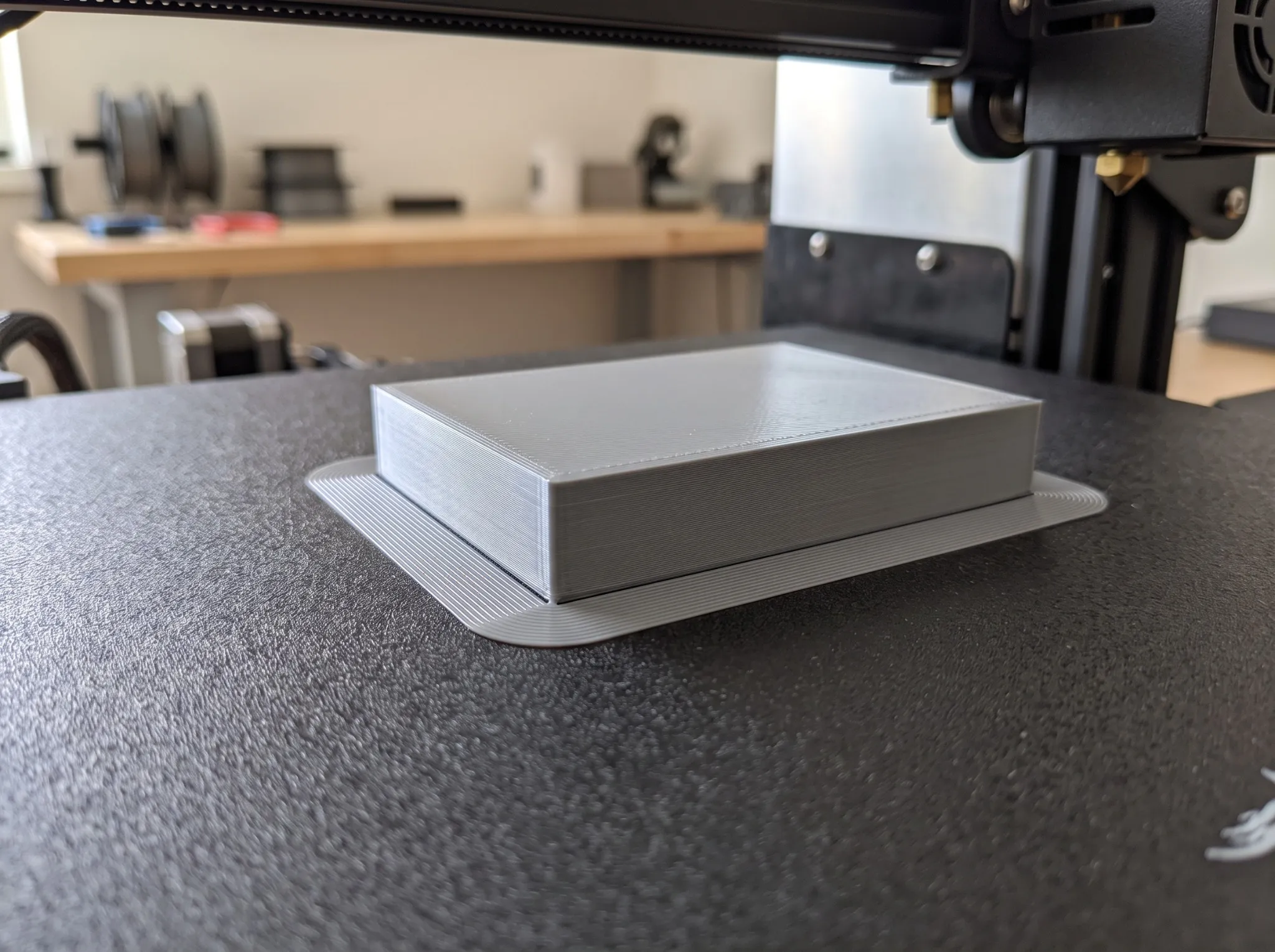
A brim adds attached lines around the model and spreads the peeling force over more surface. Small circular “mouse ears” can reinforce only sharp corners. Both consume material and require cleanup, so use them after the surface and first layer are already sound.
For persistent geometry-driven warping, consider:
- rotating the model so long stress lines are reduced;
- rounding sharp footprint corners in the design;
- splitting a very large part into stable sections;
- reducing solid mass near the base where design requirements allow.
How to verify the fix
First print a single-layer patch. Then print a small model with corners similar to the failed part. Watch those edges after several layers and again after the build plate cools. A first layer that looks attached for thirty seconds is not enough evidence.
If the model never attached uniformly, use PLA Not Sticking to the Bed. If it lifts later despite an even first layer, focus on environment, cooling, and geometry.
Map lifting to geometry and bed position
Mark the bed orientation in a photograph before removing the object. Repeat a small sample of the affected corner in the same position. If it still lifts, compare a cleaned and correctly seated plate before changing temperatures. A defect that follows a room-facing side may justify checking drafts, while one that follows the model corner may reflect geometry and shrinking stress. Keep the material and plate fixed during this comparison. Do not seal a printer into an improvised enclosure without considering its electronics, ventilation, and manufacturer limits.
Source and scope
The overall diagnostic sequence follows principles in Prusa’s official warping guide. Cooling, enclosure, temperatures, and release layers vary by material, printer, and plate.